Plugins / Sense
SENSE
Tames harsh sibilance without dulling the voice. Sense tells the soft S, SH, Z apart from the hard T, CH, K, and treats each one differently.
- Separate amounts for soft (S, SH, Z) and hard (T, CH, K) sibilants
- Live spectrum with a draggable band, Split or Wide
- Analyze Voice suggests a starting point in 5 seconds
- AU · VST3 · macOS 10.13+ · Intel & Apple Silicon
- 14-day free trial · licence for 2 computers
Inside Sense
Detection
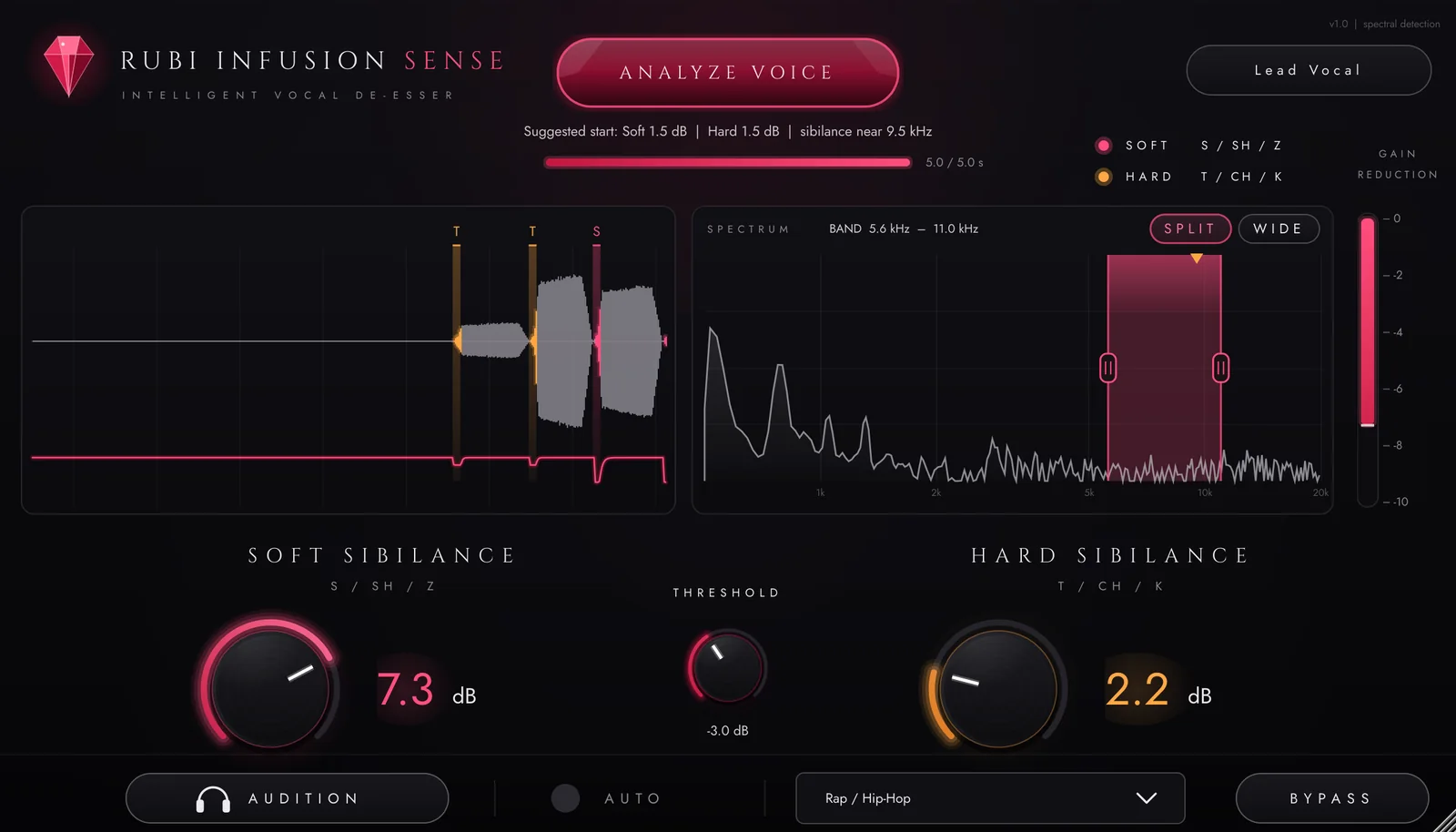
Sense listens for sibilants event by event and marks each one on the scrolling waveform: S, SH, Z, T, CH or K.
Soft and Hard
Two amounts, up to 10 dB each, so a hissy S and a sharp T get the reduction they need.
Spectrum and band
See the voice live and drag the band edges, Pro-DS style. Double-click to go back to the suggested band.
Split or Wide
Split keeps the rest of the voice bright. Wide dips the whole signal for harsh voices.
Audition
Hear only what is being removed, to set it precisely.
Auto
Keeps adapting the detection to the voice while it plays.
Assisted, then manual
- ANALYZE
- Play 5 seconds of vocal. Sense suggests the band, the threshold and the Soft and Hard amounts.
- BAND
- Drag the band on the live spectrum to choose exactly which frequencies get reduced.
- SPLIT / WIDE
- Reduce only the band, or dip the whole voice on each sibilant.
- THRESHOLD
- Catch more or fewer sibilants. Your settings stay until you analyse again.
Voice types
Save your own presets per artist: they keep the voice analysis, the band and every setting.
Questions
Which music software does it work in?
Any macOS host that loads AU or VST3 plugins: Logic Pro, Ableton Live, Studio One, Reaper, Cubase, FL Studio, GarageBand and more. An AAX version for Pro Tools is on the way. Windows is not available yet.
Is there a free trial?
Yes. The plugin runs with every feature for 14 days. After that it keeps working but goes silent for one second every forty seconds until you activate a licence key.
How many computers can I use it on?
Two computers that you own or use. To move your licence, click Deactivate in the plugin’s licence window on the old computer, then activate on the new one.
How do I activate my licence?
After payment you receive an email with your licence key. Open the plugin, click the licence button, paste the key and click Activate. An internet connection is needed only for that moment.
Can I get a refund?
If the plugin does not work on a supported system and we cannot fix it, you are refunded within 30 days. See the refund policy for details.